Guides · Baseline Pro
Casting to a television
Connect a television and Baseline shows a second, read-only board on it. Your device keeps the controls. The television does not mirror your screen. It gets its own board, laid out for a large display.
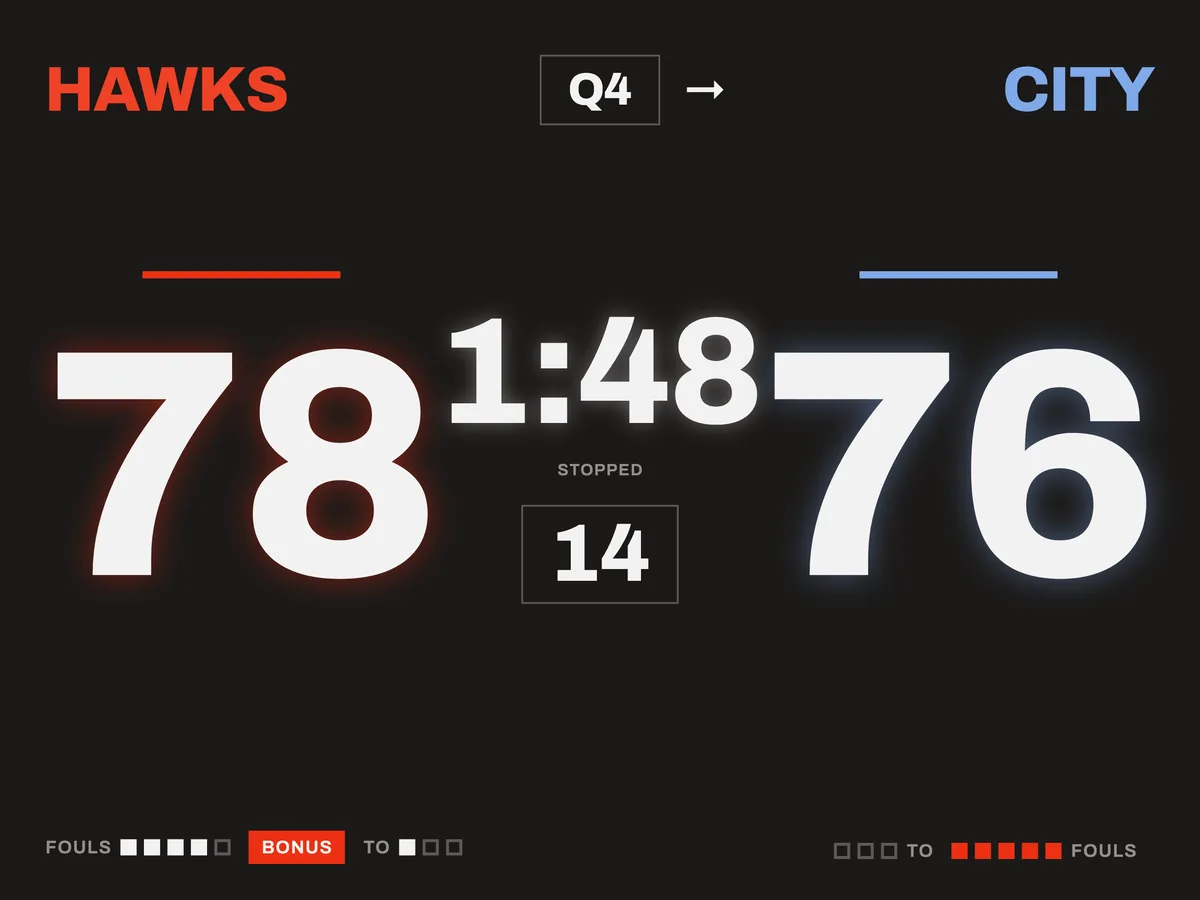
Connecting a screen
There is no cast button. Connect the display and open a game, and the board appears on it.
- iPad and iPhone: an HDMI adapter, or AirPlay to an Apple TV or an AirPlay-capable television. Start AirPlay from Control Centre with Screen Mirroring. Baseline takes over the external screen and shows the spectator board there.
- Android: a wired display, usually a USB-C to HDMI adapter. The device has to support video out, and not every Android phone or tablet does.
Your device keeps the full board, with the buttons, UNDO and the log. Nothing on the television can be tapped.
Chromecast is not supported. The spectator board needs a display attached to the device, by cable or AirPlay.
What the television shows
The television shows the game you are running, without the controls:
- both team names, and the scores in large digits with a glow in each team's colour
- the period, or FINAL once the game is over
- the game clock, with Running or Stopped under it
- the shot clock, when the game has one and it has not blanked
- team fouls, timeouts left (TO) and the BONUS tag
- the possession arrow, for rules that use one
The board is sized from the height of the screen, so it fits a small monitor or a large display. Running and stopped are shown in words as well as colour, so they can be told apart without relying on green and white.
The television runs its own clock. Your device sends an update only when something changes, such as a basket, a foul, or the clock starting or stopping. While the clock runs, nothing is sent, so a slow connection cannot make the television's clock stutter or drift.
Only the game board is cast
The training timers, scrimmage and multi-team games stay on your device. When you leave the board, the television stops showing it. It usually goes back to mirroring your device's screen, which is the operating system's behaviour.
Without Baseline Pro
Without Baseline Pro, a connected screen shows a plain card: BASELINE, a red rule, and Scoreboard ready. It never shows an upgrade message.
Your device shows a short note at the foot of the board once: A screen is connected. It has a CAST button. Tapping it is the only way the Baseline Pro screen opens from there, so connecting a cable mid-game won't cover your board.
If you buy Baseline Pro with the screen already connected, disconnect and reconnect it, or leave the board and come back. The television then shows the board.
Previewing the display
Settings → Spectator view → Preview shows what a television would show, on your own screen. It uses the game currently open on the device, and the clock keeps running. Close it with the cross in the top corner.
The preview only works on the device running the game. A second phone or tablet can't show it, because the app makes no network connection while you run a game.
Tips
- Connect the screen before tip-off and check it shows the board.
- The app keeps your device awake while a board is open, but the television's own power-saving settings still apply. If it sleeps on a static picture, turn that setting off on the television.
- AirPlay depends on Wi-Fi, either the venue's or a network the Apple TV creates. A cable doesn't, so use one where you can.
- If the connection drops, reconnect the screen. The game is on your device, so the board comes back where it was.
For anything else, see support.
Next guideTraining →