Guides · Partly Pro
Training
Training has the timers for practice sessions. There are no periods, fouls, timeouts or history, only a large clock and a horn.
Open it from Training on the home screen. The menu is a grid of cells, and each one shows the digits it will put on screen.
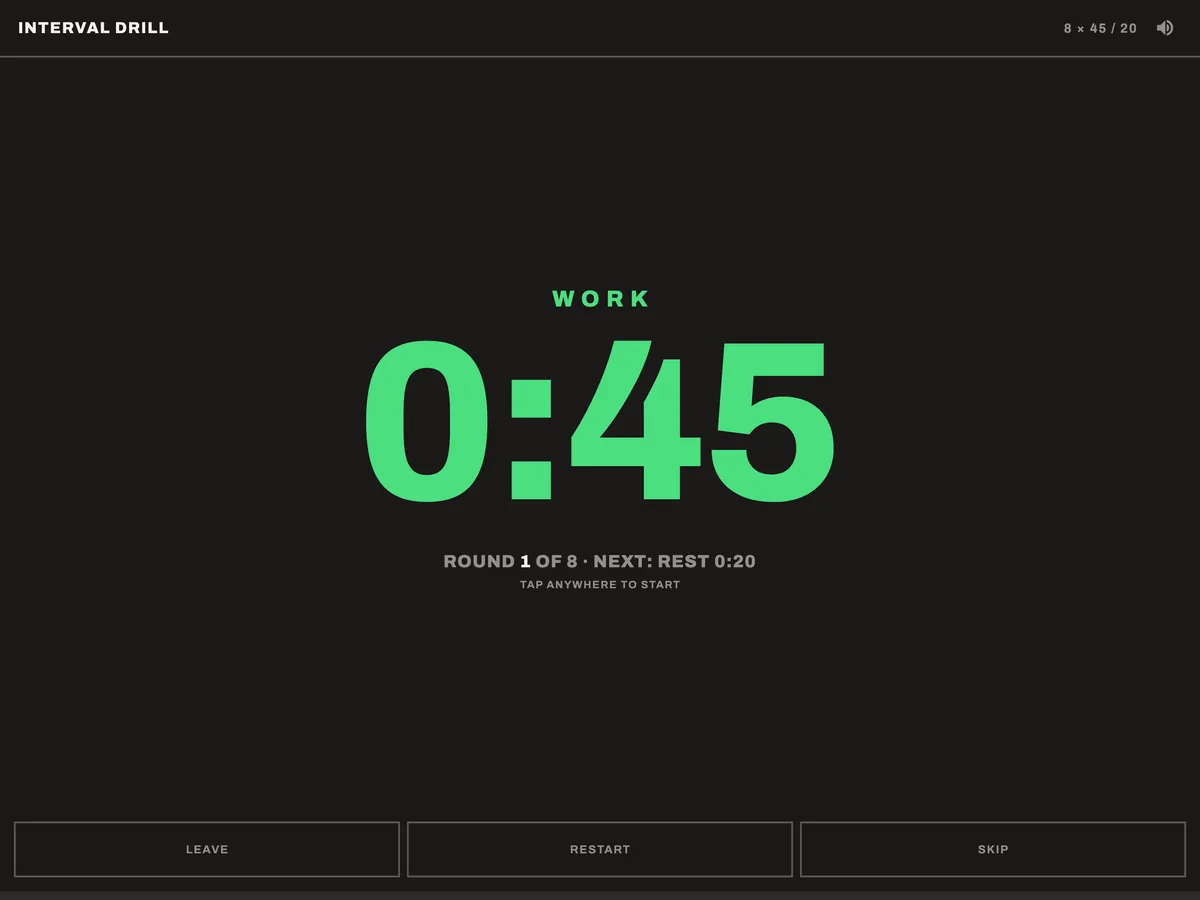
How the timers work
The drill timers work like the game clock: tap anywhere to start, and tap anywhere to pause.
- Green is work and amber is rest. The status line underneath also says which in words.
- A bar along the bottom fills as the current segment runs down.
- A stopped timer pulses, so you can tell it apart from a running one.
- The horn sounds at zero. The speaker button in the corner mutes it, and it works while the timer runs.
- The screen stays awake while a timer is open.
While a timer runs, there are no buttons on screen. Pause it and three appear: LEAVE, RESTART and SKIP. Leaving mid-drill always takes two taps.
Countdown
One duration and a horn at zero. It's free.
Set a Duration of up to an hour and tap Start. Turn on Repeat and the countdown restarts each time it reaches zero, until you stop it. This suits stations that rotate on the horn.
Intervals
Work, rest and a number of rounds.
- Work: 5 seconds to 10 minutes, in steps of 5 seconds.
- Rest: zero to 10 minutes. Zero runs rounds back to back.
- Rounds: 1 to 30.
Before you start, the editor shows the number of rounds and roughly how long the drill takes.
Work and rest follow each other with no tap at the changeover. The status line shows where you are, for example ROUND 3 OF 8 · NEXT: REST 0:15. The drill ends after the last work segment, with no rest after the final round.
SKIP, while paused, moves to the next segment.
Save a drill by name with Save this drill. Baseline Pro keeps as many as you like. The menu offers the first saved drill next time.
Shot-clock trainer
A full-screen shot clock on its own, for practising the pace of an offence.
Pick 24, 30 or 14 seconds, or Custom for anything from 5 to 60. Once it's running, a tap resets it to full instead of pausing it.
At zero it sounds the shot-clock horn, which is different from the game horn. It then stays at zero until you pause and restart it.
Scrimmage
A simple scoreboard: two scores, one clock and an optional shot clock. It runs on the same engine as a real game, so the clock, the horn and UNDO work the same way.
Set it up before you start:
- Clock: 1 to 60 minutes. Turn on Count up to run it up from 0:00.
- Shot clock: off by default. When on, it uses one reset value for both teams.
- First to: a target score from 5 to 99, or none. The default is 21.
- Teams: optional names and colours. A blank name shows as HOME or AWAY.
Custom scoring buttons
The default buttons are +1, +2 and +3. You can replace them with up to six of your own, the same on both sides. Each has a short label and a value from −5 to +5.
Use them to score things other than baskets. For example, give a point for a stop or an offensive rebound, and take two off for a turnover with a −2 button.
- Hold a plus button to take its points back off.
- Minus buttons have no hold. Use the matching plus button instead.
- Long-press the score to type a total on the keypad.
- UNDO reverses the last button pressed.
When a team reaches the target or the clock runs out, the board shows the winner, or a tie, and offers PLAY AGAIN. That starts a new scrimmage with the same set-up.
Scrimmages are not saved to your game history. You can save the set-up by name with Save this set-up and reuse it next session.
More than two teams
For 3x3x3, king of the court and cutthroat, with two to six teams on one board, see multi-team games.
Free and Pro
| Timer | Free | Baseline Pro |
|---|---|---|
| Countdown | Yes | Yes |
| Intervals, with saved drills | Locked | Yes |
| Shot-clock trainer | Locked | Yes |
| Scrimmage, with saved set-ups | Locked | Yes |
| Multi-team games | Preview only | Yes |
Locked timers stay on the menu, greyed out and marked. Tapping one shows what Baseline Pro includes. You can open the multi-team set-up and look around before buying.
Questions about anything here: support.
Next guideMulti-team games →