Guides · Partly Pro
Playbook
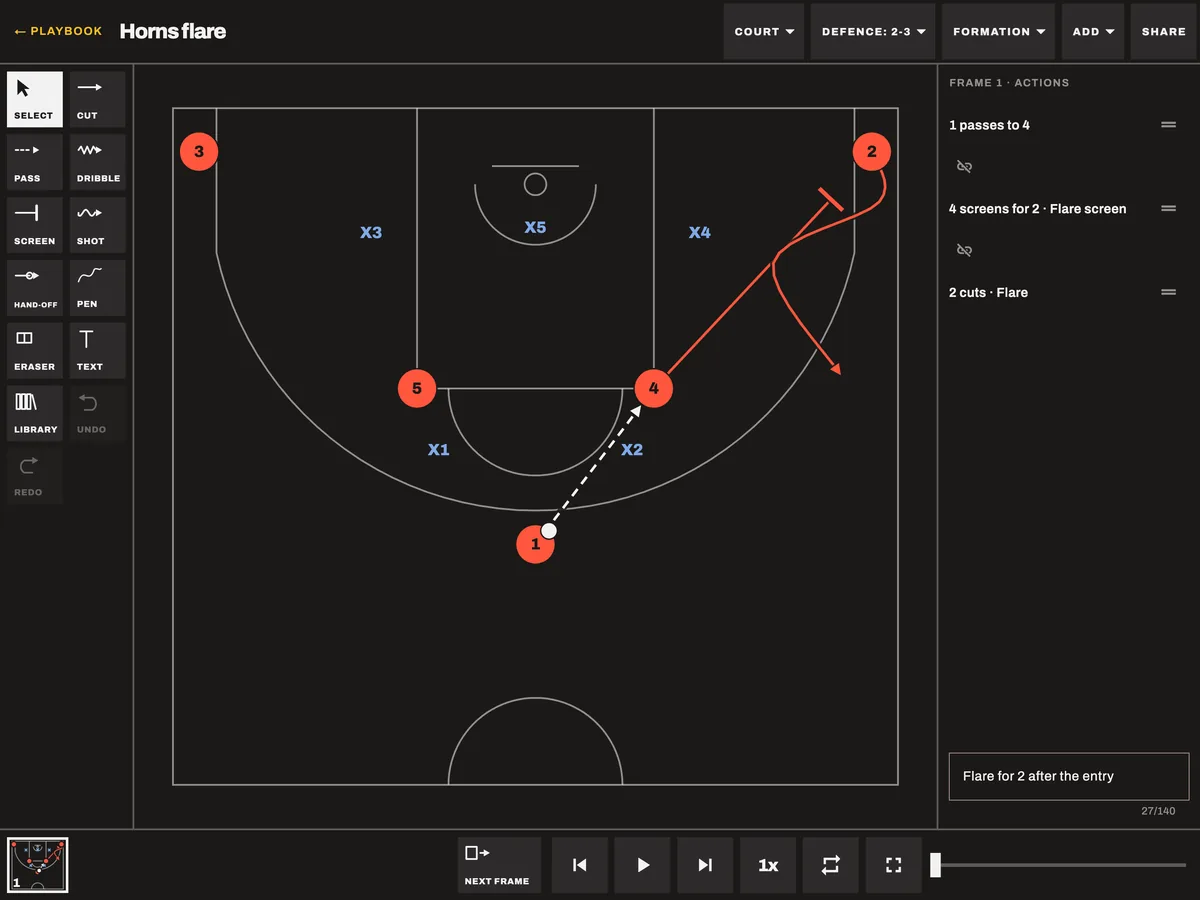
The playbook is a coach's whiteboard. It uses the notation coaches already know: numbered circles for the offence, X1 to X5 for the defence, a solid arrow for a cut, a dashed arrow for a pass, a zigzag for a dribble and a bar for a screen.
Open it from Playbook on the home screen.
Drawing a play
Pick a tool and drag from a player to draw. For a straight line, tap a player and then a spot.
- Cut, Pass, Dribble, Screen and Shot are the five actions. Hand-off, Pen, Text and Eraser are there too.
- Screen asks who sets it and who it is for. Pass asks who it goes to.
- Players and line ends snap to the wing, the elbow, the block and the other spots. Snap to spots turns this off.
- Shaky lines come out clean. Undo gives you back the line as you drew it.
- Hold a tool to keep it after each line.
On a phone, More has the tools that don't fit on the bottom rows.
Frames and playback
A play is a set of frames. Draw what happens first, tap Next frame, and draw what happens next. With Pro a play can have up to fifty frames; the free scratch board has twelve.
Press play and the players and the ball move from frame to frame. Each cut, pass and screen lights up as it happens. Loop repeats the play, and the speed button slows it down for teaching.
Court look, under Court, changes what the court is drawn on: the dark board, paper, or a wood floor. Pick maple, oak or walnut, and a colour for the key. Exports, Present and the TV use the same look.
Present fills the screen with the court. Tap to play or pause, and swipe for the next or last frame.
During a game
On the board, tap EXIT while the clock is stopped and choose Open Playbook. It opens over the board, and the clock and the score are not touched. Back returns you to the game exactly as it was.
It is not offered while the clock runs.
If you have pinned plays to the Game plan, it opens there first. The game plan holds eight plays.
The cut and screen library
Library stamps a correctly shaped action instead of you drawing the curve. It has 26 cuts, from the V-cut and backdoor to the curl, flare, UCLA and zipper, and 18 screens, including the pin-down, flare, stagger, elevator and Spain.
Pick a cut and it is drawn on the selected player, or on the next one you tap. Drag the end to change where it goes. Search finds a cut or screen by name.
Defence
Defence puts something on the court to play against:
- Zone and Press: 15 presets, including the 2-3, 1-3-1, match-up zone, box-and-one and the 2-2-1 press. When the ball moves, the defence shifts with it.
- Man-to-man: X1 on 1 and so on, on the ball and in help. A ball screen offers a coverage, such as drop, hedge, switch, ice or trap.
- Custom: five defenders placed by hand.
Drag any defender to move them. Reset defence puts them back on the preset.
Formation starts a frame from one of 13 sets, such as 5-out, Horns, box and 1-4 high. Court changes the court: FIBA, NBA or NCAA, half or full, the 3x3 half court, mini or a blank floor.
Keeping and sharing plays
Plays save as you go. Organise them in sections, such as man offence, baseline inbounds and press break, with tags and notes. Search finds plays by name, tag or note.
Share sends the play as an image of a frame, a PDF, a GIF or a video of the animation, or a play file another device can open. A GIF is for plays of up to twelve frames; share a longer play as a video. Exports carry a small Baseline mark, which Baseline mark on exports in Settings turns off.
With a TV connected, Show on display puts the play and its animation on the TV. See casting to a TV.
Free and Pro
| Free | Baseline Pro | |
|---|---|---|
| Drawing tools, frames, playback and Present | Yes | Yes |
| Open from the board during a timeout | Yes | Yes |
| Saving plays, sections and the game plan | No | Yes |
| The cut and screen library | Locked | Yes |
| Defences, formations and other courts | Locked | Yes |
| Show on a TV | Locked | Yes |
| Image, PDF, GIF, video and play file | Locked | Yes |
On Free, the playbook opens onto a scratch board: everything you need to draw and animate one play, which is lost when you leave. The Pro tools stay on screen with a lock. Tap Save to keep the drawing: buying Baseline Pro there keeps it as your first play.
If Baseline Pro lapses, your saved plays stay. You can still open and play them back.
Questions about anything here: support.
Next guideTraining →