Guides · Free
Running your first game
Everything on this page is free.
Set the game up
From the home screen, tap Game. The setup screen has three columns: the rule preset, the rules, and the teams.
Pick a rule preset. The built-in presets are FIBA, US High School, Pro style, Halves, Mini basketball and FIBA Underage, which covers the U11 to U14 grades. Each one sets the period length, quarters or halves, the shot clock, overtime, breaks, timeouts and the team-foul bonus. To change any of these, use the Rules column. The preset list then shows Edited from and the preset you started with.
FIBA 3x3 is also on the list and needs Baseline Pro. The rules and presets guide covers every setting.
Name the teams. Type a name for Home and Away and pick a colour from the swatches underneath. The colour marks the team's side of the board. It never colours the score digits, so the score stays readable whatever colour a team picks.
You can leave the roster empty. Without one, FOUL books a team foul only. A roster adds player fouls, covered in the fouls and officiating guide.
Tap Start game.
The board
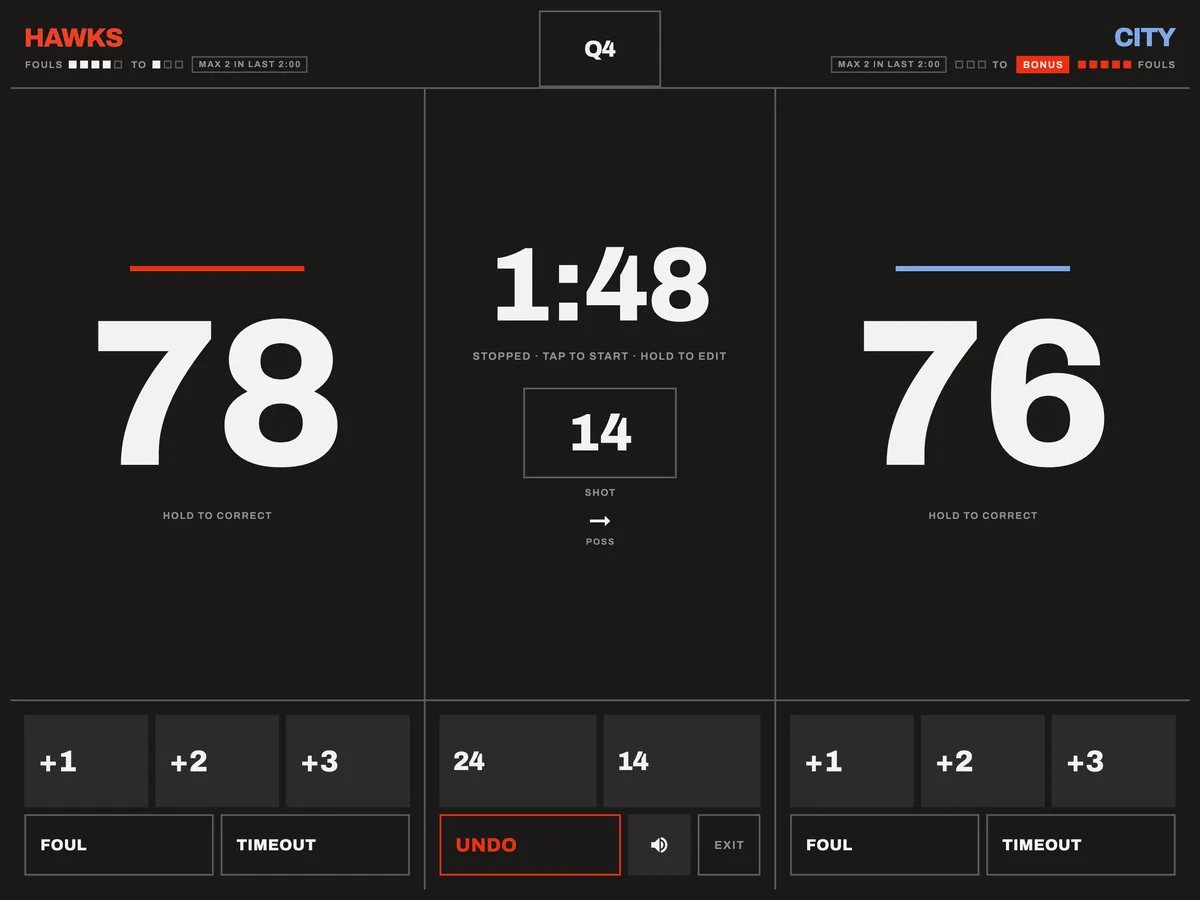
The board has three zones:
- Left half: the home team's score, fouls, timeouts and buttons.
- Right half: the same for away, mirrored.
- Centre: the game clock, the shot clock and UNDO.
Along the top are the team names with their fouls and timeouts, and the period in the middle. The mute button and EXIT sit beside UNDO.
Scoring
Tap +1, +2 or +3 under the team that scored. Tapping the score digits does nothing, so a stray tap can't change the score.
The clock
Tap anywhere on the clock face to start or stop it.
The line under the digits shows the clock's state: Running · tap to stop · hold to edit or Stopped · tap to start · hold to edit. A stopped clock also pulses, so you can tell the two apart without relying on colour.
To set the time, hold the clock and type it on the keypad.
The horn sounds at the moment the clock reaches zero. It plays even when the device is silenced. Use the board's mute button to turn it off.
The shot clock
When the preset has a shot clock, the centre shows it with a reset button for each value, usually 24 and 14. A reset never starts a stopped game clock. Start the game clock and the shot clock follows. Hold the shot clock to set its value.
Fouls and timeouts
Tap FOUL to book a team foul. The square pips beside the score fill in as fouls go up. When a team reaches the bonus, a tag appears beside it showing what the other side gets.
Tap TIMEOUT to take one. The TO pips show how many are left. A timeout a team doesn't have is still booked, marked as excessive, because the table records what the referee granted.
Fixing mistakes
Tap UNDO to take back the last action: a basket, a foul, a timeout, a clock start or a shot-clock reset. Each tap goes one step further back.
Hold UNDO to open the undo log. It lists recent actions with the period and game clock of each. You can undo one entry from the middle without losing the ones after it. The free log goes back fifteen actions.
Hold a score to open a keypad and type the correct total.
Hold a +1, +2 or +3 button to take that many points off. There's no minus button, because one next to a plus is easy to press by mistake.
Periods
When a period ends, a banner appears under the clock and the clock stays at 0:00. The banner has one button for the next step: Start break, Start half time or Start Q2. Nothing moves on until you tap it.
To change period, for example if the teams agree to play three quarters or a period was started by mistake, tap the period at the top of the board. This opens Jump to period. Hold the period you want. It needs a hold because UNDO can't reverse a jump. The score is kept, and fouls and timeouts follow the rules for the new period.
Ending the game
At the end of regulation, a tied game offers Start overtime and a decided one offers Hold to end game. Ending needs a hold because UNDO can't easily reverse it.
To finish early, for a forfeit, a mercy rule or when the hall booking runs out, tap EXIT. Both options need a hold:
- Hold to leave: the game stays open and waits for you on the home screen.
- Hold to end the game: finishes it at this score and saves it to History.
The game is saved as you go, so Done on the final screen takes you back to the home screen. After the game covers the summary and history.
If the app closes
Open the app again and the home screen shows Game in progress with Resume and Discard. The game comes back where it was.
Time while the app wasn't running isn't taken off the clock. The clock stops at the last moment the app was known to be running, and the board shows how long it was away. If the referee kept time, hold the clock to correct it.
The clock also stops when the app goes into the background. The screen stays awake while the board is open.
Only one game runs at a time. Starting a new game clears an unfinished one, so resume it first if you want to keep it.
Next guideRules and presets →